
First World
Organizes what this app does — its intent — as a structure.
Odd Eye Guide
Odd Eye breaks the app you want to build into a First World and a Second World, and turns that structure into an instruction you can hand to a vibe coding tool.
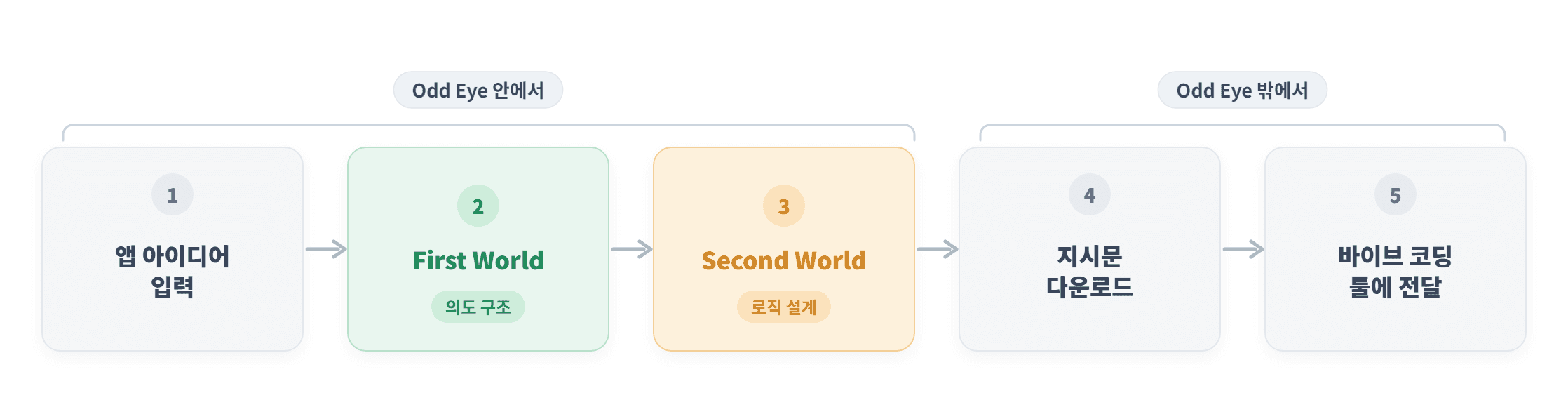
Odd Eye unfolds the app you want to build into two worlds.
Organizes what this app does — its intent — as a structure.
Designs how that intent will work, as program logic.
In other words, it moves from what to build down to how to build it.
After these two steps, Odd Eye produces an instruction you can hand directly to a vibe coding tool. You can inspect your app's design with your own eyes and fix it in natural language — without writing code yourself.
Just follow the steps below in order.
Step 1
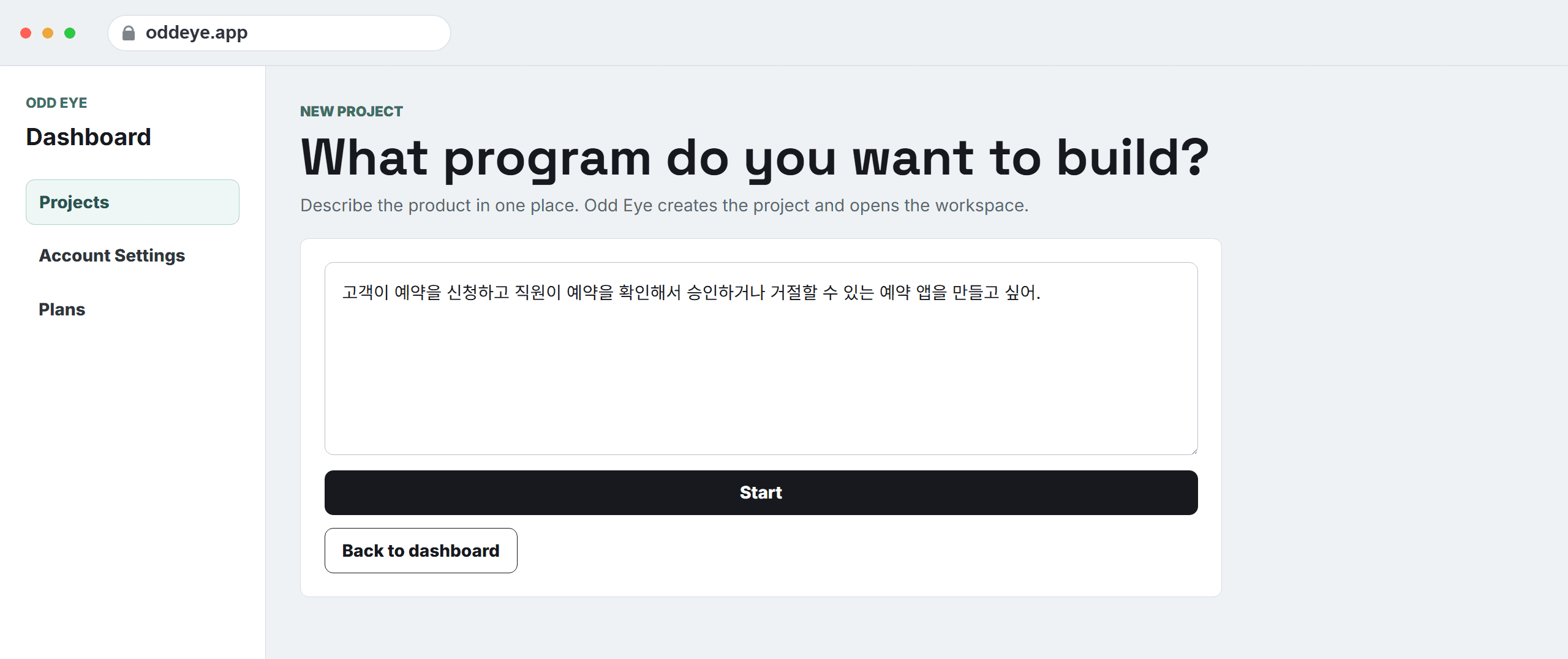
Describe the app you want to build. One sentence is enough.
For example, something as simple as 'a reservation app where customers request bookings and staff approve or reject them' works fine.
You don't need to explain everything now. You can refine it as much as you want in the next step, the First World.
Step 2
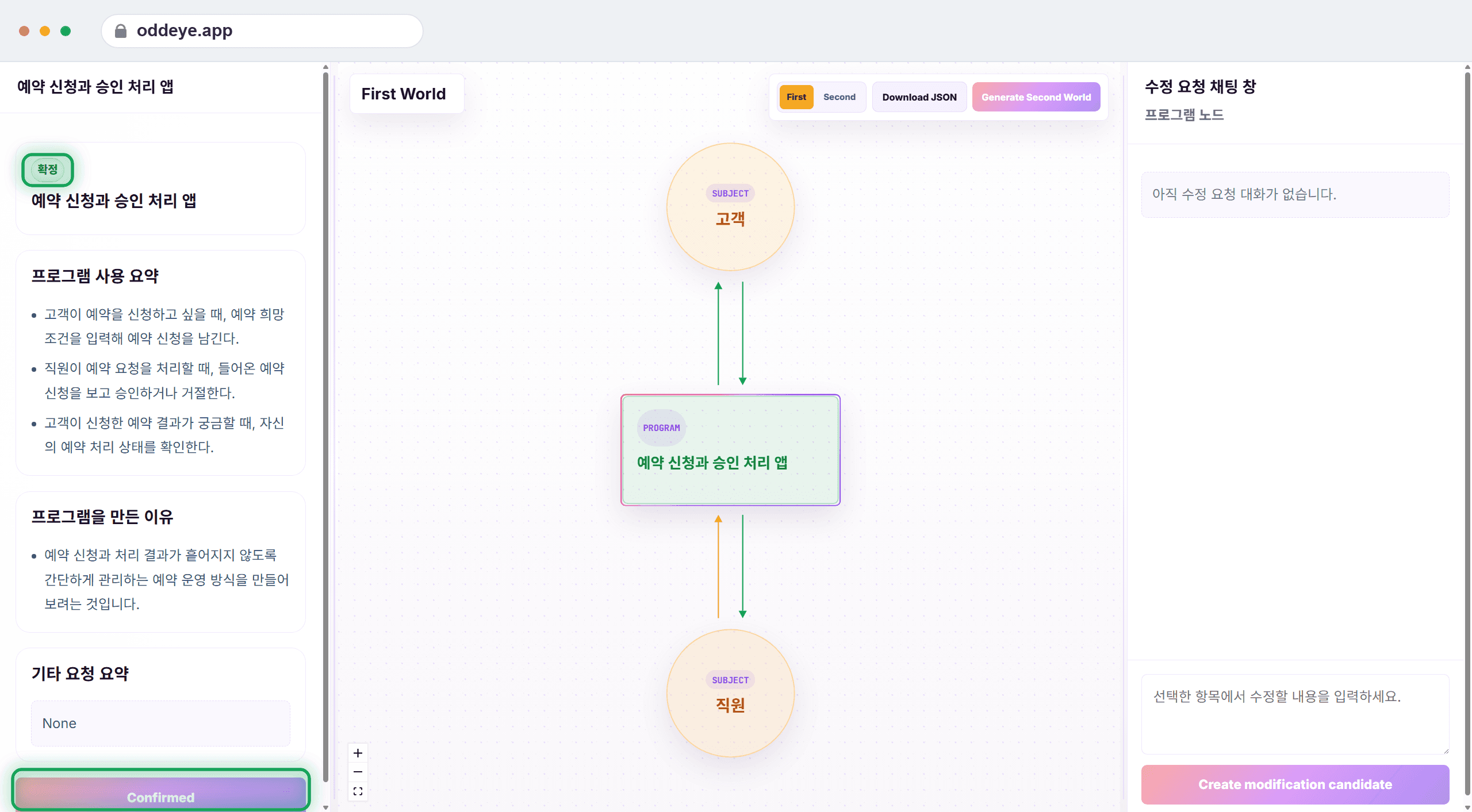
The First World is where you settle what your app does.
Based on the idea you entered, the app's intent is laid out as a structure. Whether you wrote a long description or a single line, we recommend checking every element here one by one, except the connection lines.
If the intent at this stage is wrong, the design of the app can go off track from the very beginning. The First World is the most important step.
If nothing differs from your intent, move on. If something is off, fix the First World in the very next step.
Step 3
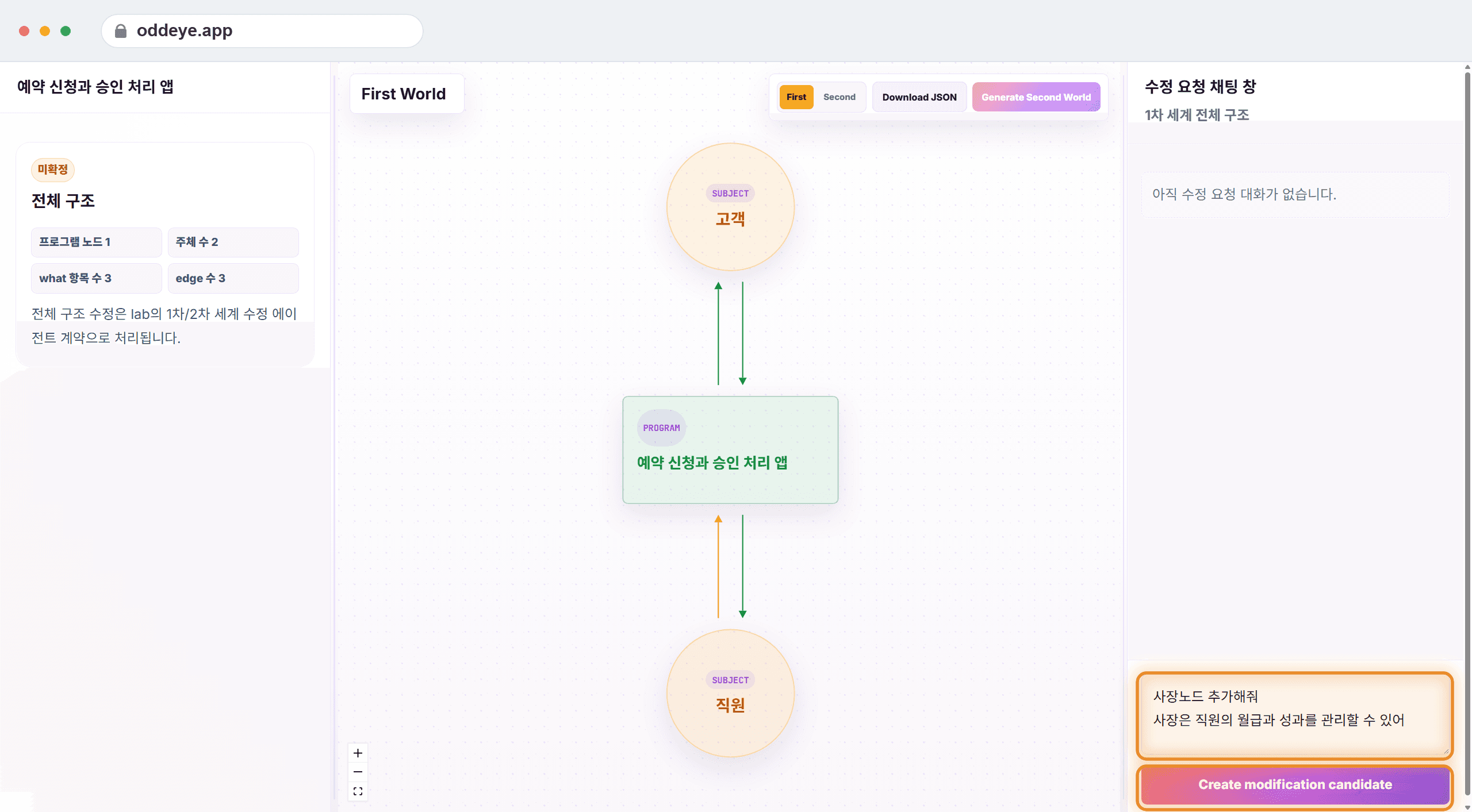
While reviewing the First World, you may find parts organized differently from what you intended.
For example, a needed subject may be missing, or the app's purpose may have been interpreted differently. When that happens, select the element and type the change you want in the modification request box.
Example: 'Add an owner subject. The owner can manage employee salaries and performance.'
Odd Eye doesn't apply the request immediately — it first shows a modification candidate. Review what will change, and apply it if it looks right.
Getting the intent right here makes the next step, the Second World, far more stable.
Step 4
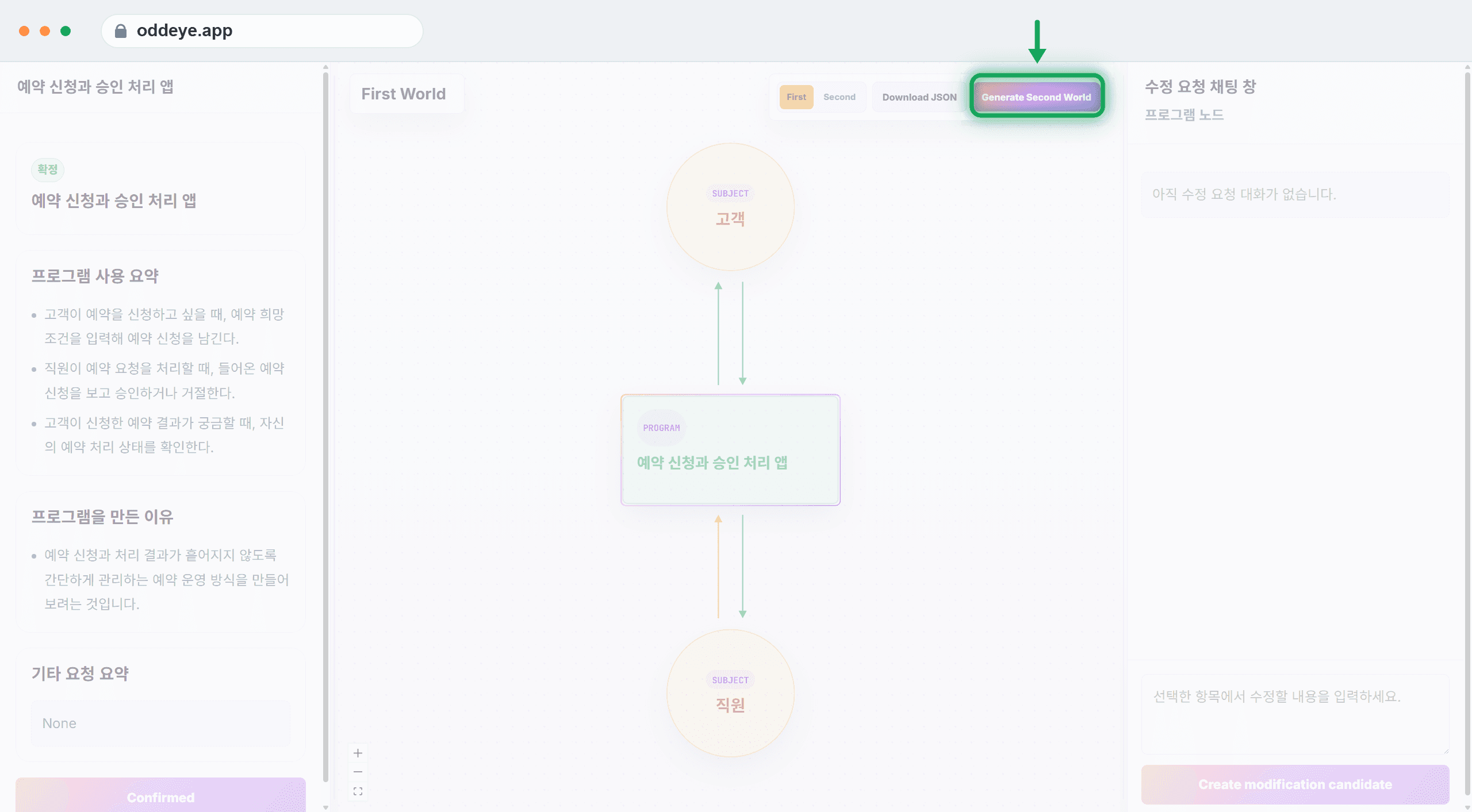
Once you've finished reviewing and modifying the First World, press the Generate Second World button.
The Second World is where the intent you settled earlier is designed as program logic that shows how it will actually work.
You don't need to confirm everything one by one like in the First World. The intent must be settled in advance, but for logic it is much more efficient to run the code first and only revisit the parts that cause problems.
So rather than reviewing the whole Second World now, we recommend passing the instruction along first and coming back only when an error appears.
Step 5
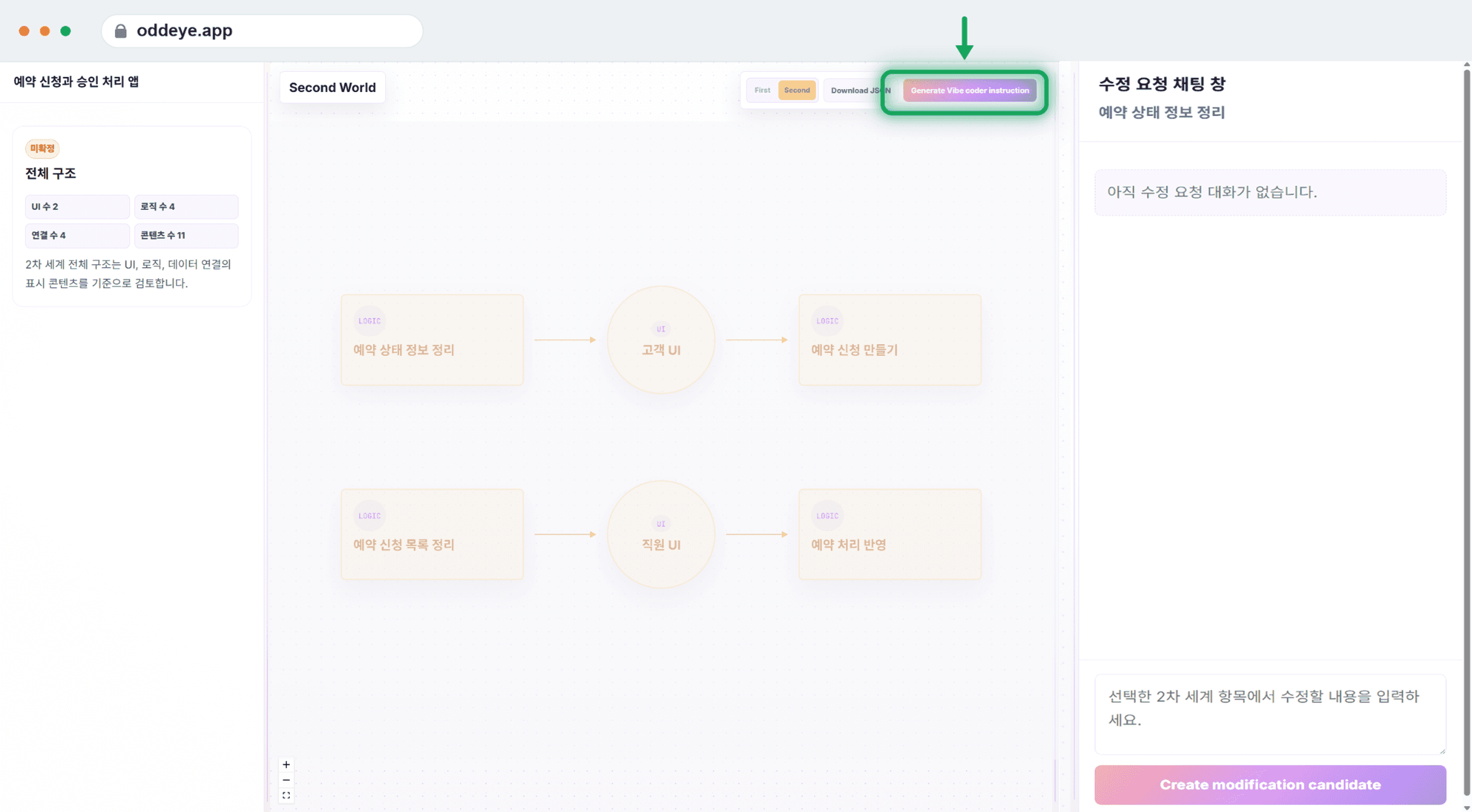
In the Second World, press the Generate Vibe coder instruction button to download the instruction.
Paste the downloaded instruction into whichever vibe coding tool you're using, as is.
Cursor, Lovable, Bolt — any service works.
Step 6
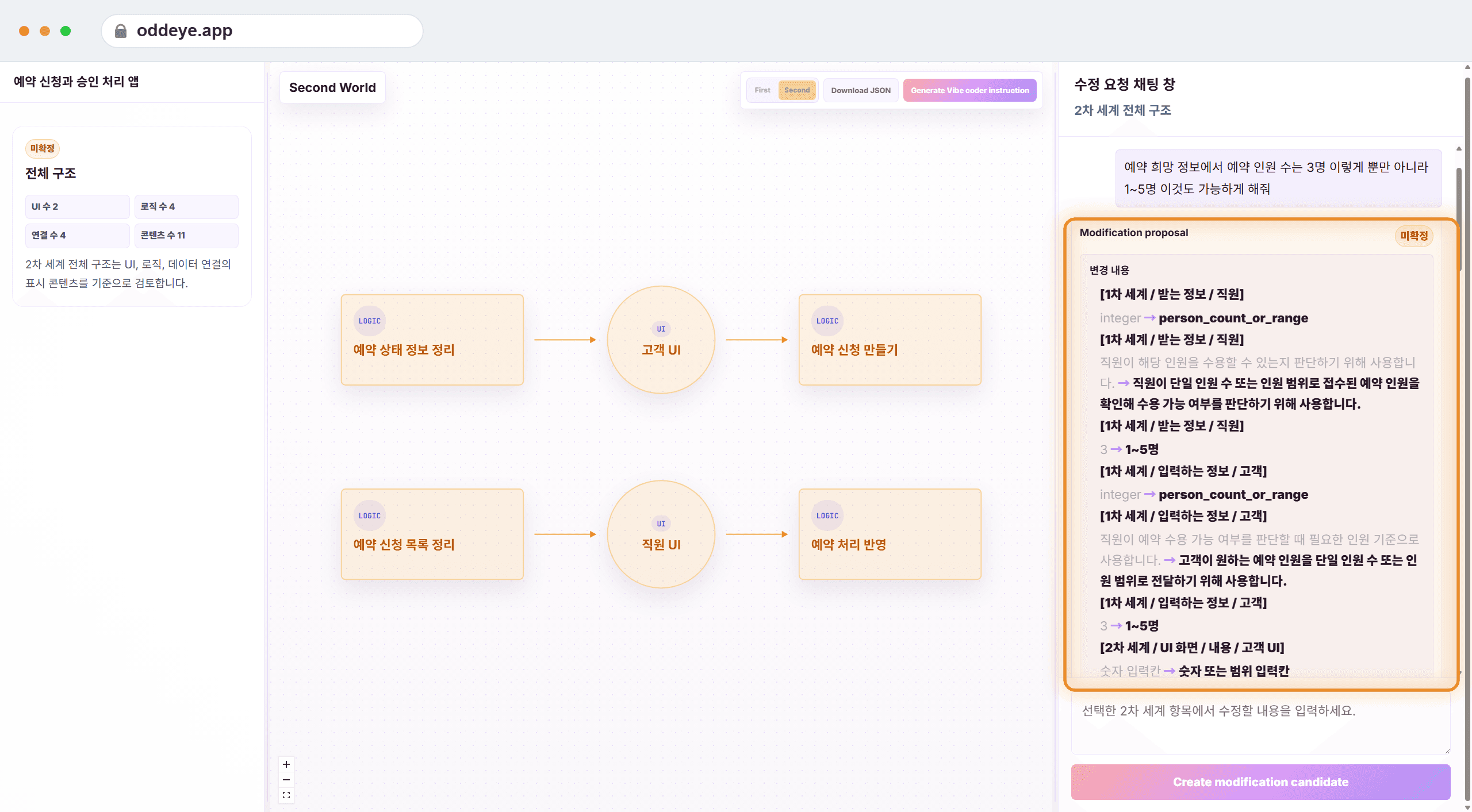
Run the finished program and use it yourself. Look for parts that behave differently from your intent or don't work at all.
When you find one, locate that element in the Second World and inspect its logic. You can pinpoint where things went wrong with your own eyes.
Write the problem in the modification request box. For example: 'Let the party size accept a range of 1–5 people instead of a single value like 3.'
Odd Eye explains what will change in natural language rather than code, so you can review what changes and how — without reading code.
Step 7
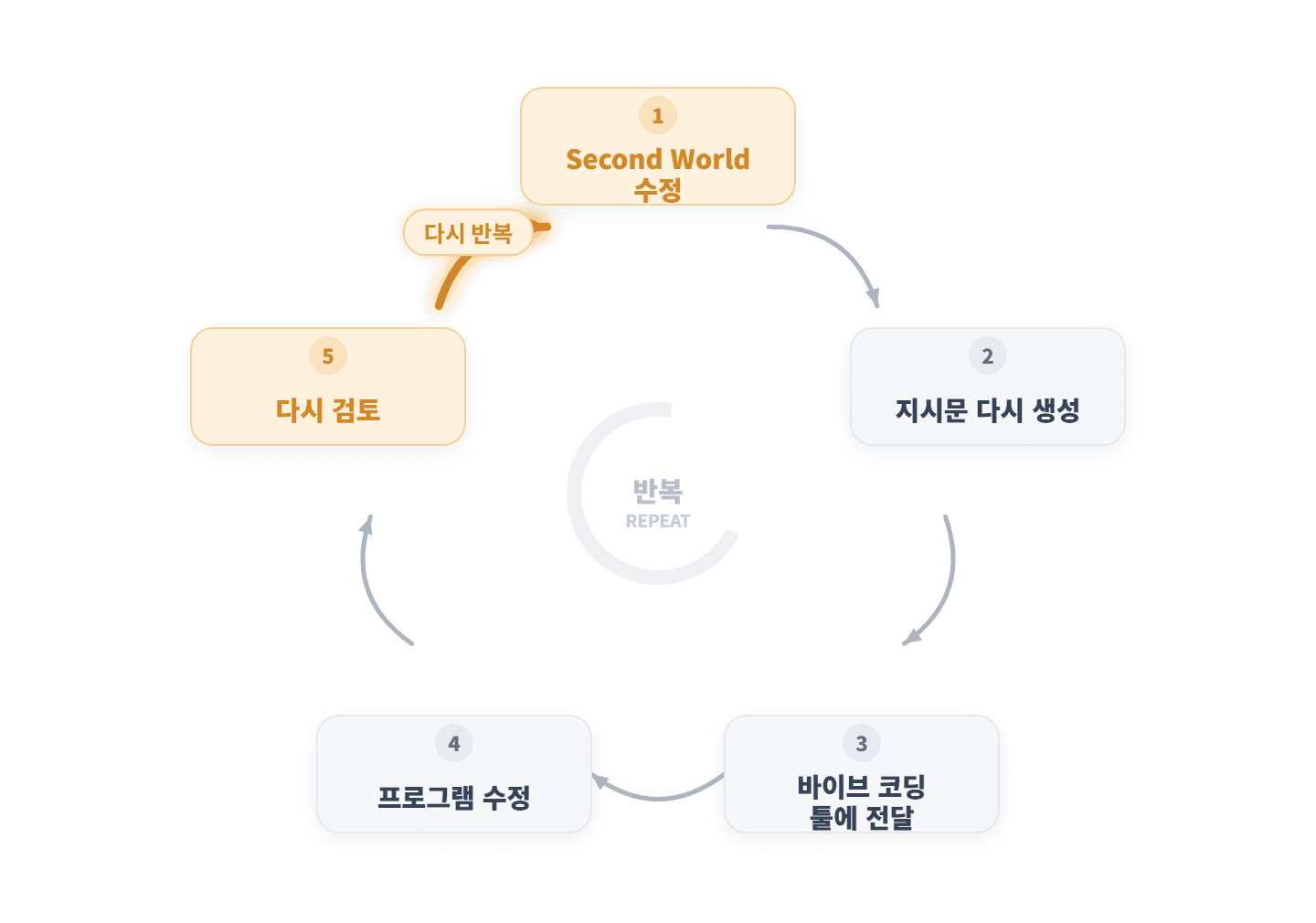
Once you've finished modifying, generate the instruction again.
Hand the new instruction back to your vibe coding tool, and the program is updated to match the revised design.
Repeat this cycle to bring your app to completion.